Tasks
Tasks are actionable to-do items for coaches to track critical activities, follow-ups, and interventions. They ensure important actions don't fall through the cracks.
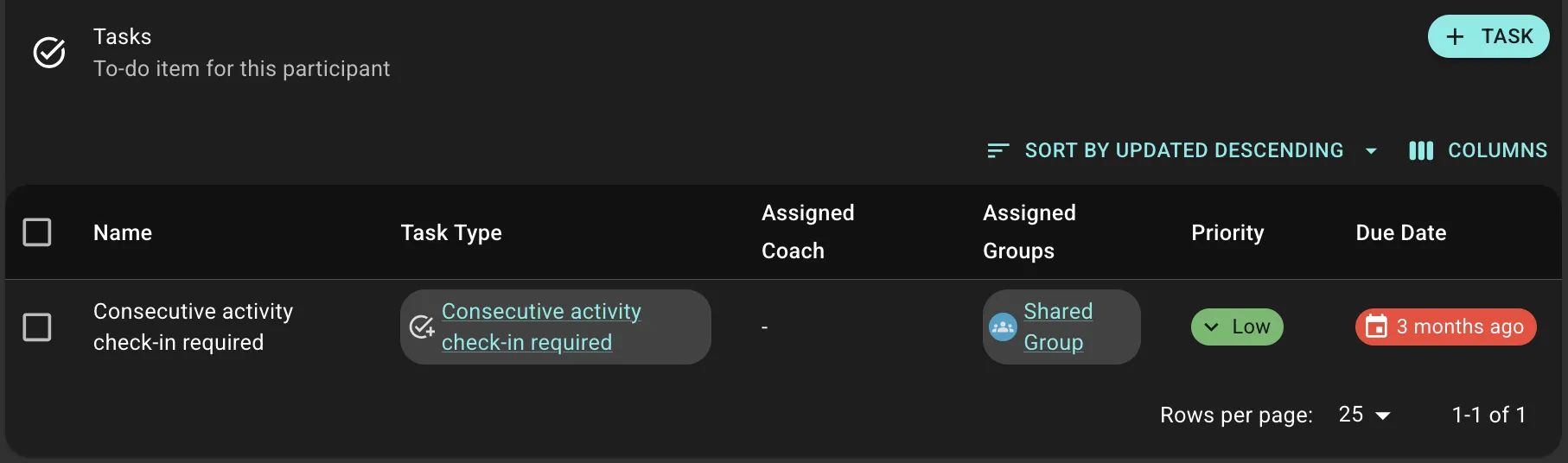
Example
A participant's PHQ-9 score indicates severe depression. The system automatically creates a CRITICAL priority Task assigned to their coach: "High Depression Score - Immediate Follow-Up Required."
How Tasks Are Created
Manual Creation
Coaches can create Tasks for scheduling follow-ups, assigning work to team members, or setting reminders.
Automatic System Tasks
The platform automatically generates Tasks for critical situations:
- Unread Messages: When a participant's Chat message remains unread past a configured threshold (with email notification)
- Participant Not Consented: When onboarding isn't completed within the timeframe
- Webhook Tasks: External systems can trigger Task creation via API
Task Organization
Tasks are organized into Task Areas (categories like "High Risk Alerts," "Onboarding," "Unread Messages") for filtering and prioritization.
Each Task has:
- Name, linked Participant (optional), Task Area, Priority (Low/Medium/High/CRITICAL), Due Date (optional), Assigned Coach/Groups
Task Actions
- Complete: Mark done with notes documenting the outcome
- Dismiss: Remove Tasks that are no longer relevant (no notes)
- Archive/Activate: Toggle between active and archived states
Notifications
Coaches receive:
- In-app badges: Count of active Tasks
- Email notifications: For specific tasks like unread messages or CRITICAL priorities
Best Practices
For Coaches:
- Check Tasks daily, addressing CRITICAL first
- Add detailed completion notes for continuity of care
- Set realistic due dates
- Create meaningful Task Areas matching team workflow
- Configure reasonable thresholds for automatic Tasks
- Monitor completion rates to identify bottlenecks